Enable RDP Audio On Windows Server 2008/R2
Setting up a new Windows Server 2008 R2 has proven to be an interesting experience simply because it so different from Windows Server 2003. Most of the services are the same, it is just different (and sometimes difficult) to configure them. One of these is enabling audio through RDP sessions. I use my server as my sync hub for my iPod/iPhone devices, so being able to listen to audio through an RDP session is an absolute must. Unfortunately, Windows doesn't come with that loaded out of the box, so here's how you go about enabling it.
- Start -> Run -> mmc.exe
- File -> Add/Remove Snap-In
- Add Remote Desktop Session Host Configuration
- Click OK.
- Click On RD Session Host COnfiguration: %computername%
- Double click on RDP-Tcp
- Click on the Client Settings tab and uncheck the Audio and video playback checkbox.
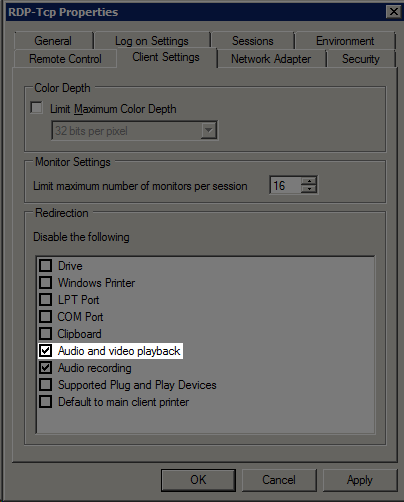
- If you want to increase the color depth, uncheck the Limit Maximum Color Depth checkbox as well.
- Click Apply and OK
- Make sure that the Windows Audio service is running and startup set to automatic.
- Logoff your current session if you are remotely connected.
- Done!